- Official User Manual
- iPhone and iPad setup steps
Shadowrocket Setup Guide
Import a Subscription and Verify the Connection
Follow this order: import, choose a mode, connect, verify, then troubleshoot. For your first setup, complete the full flow once before adjusting rules or On Demand settings.
Screenshots are official App Store assets. Available options may vary depending on the selected Type, current configuration, and device layout; follow the labels shown in your app.
01 Add or Import
Start by saving your existing connection details to Home, then configure routing and the connection switch. Open Shadowrocket, go to Home, and tap Add Server. Choose the method that matches your details: use Subscribe for a complete subscription link, or manually add a single server using its address, port, and authentication details. You don’t need to use both methods. Avoid importing the same details twice, which can make it easy to select the wrong entry.
Subscribe: Import an Existing Subscription
In Add Server, tap Type, choose Subscribe, and open the subscription form. Paste the complete link provided by your service provider into the URL field. If there’s a notes field, enter a name you’ll recognize. Check the beginning, end, and middle of the link for spaces, line breaks, or punctuation added by a messaging app, then save. Subscription links often contain authentication details, so don’t share them as if they were public URLs.
Return to Home and wait for the subscription to load. Check that the expected group and server entries appear. If you see the subscription name but no servers, check for an error message, then verify the link and your current network. Don’t immediately create another subscription with the same name. To sync entries provided by your service provider later, use the update action for that subscription. An update may change the server list, so check your selected server again afterward.
Add Server: Enter Server Details Manually
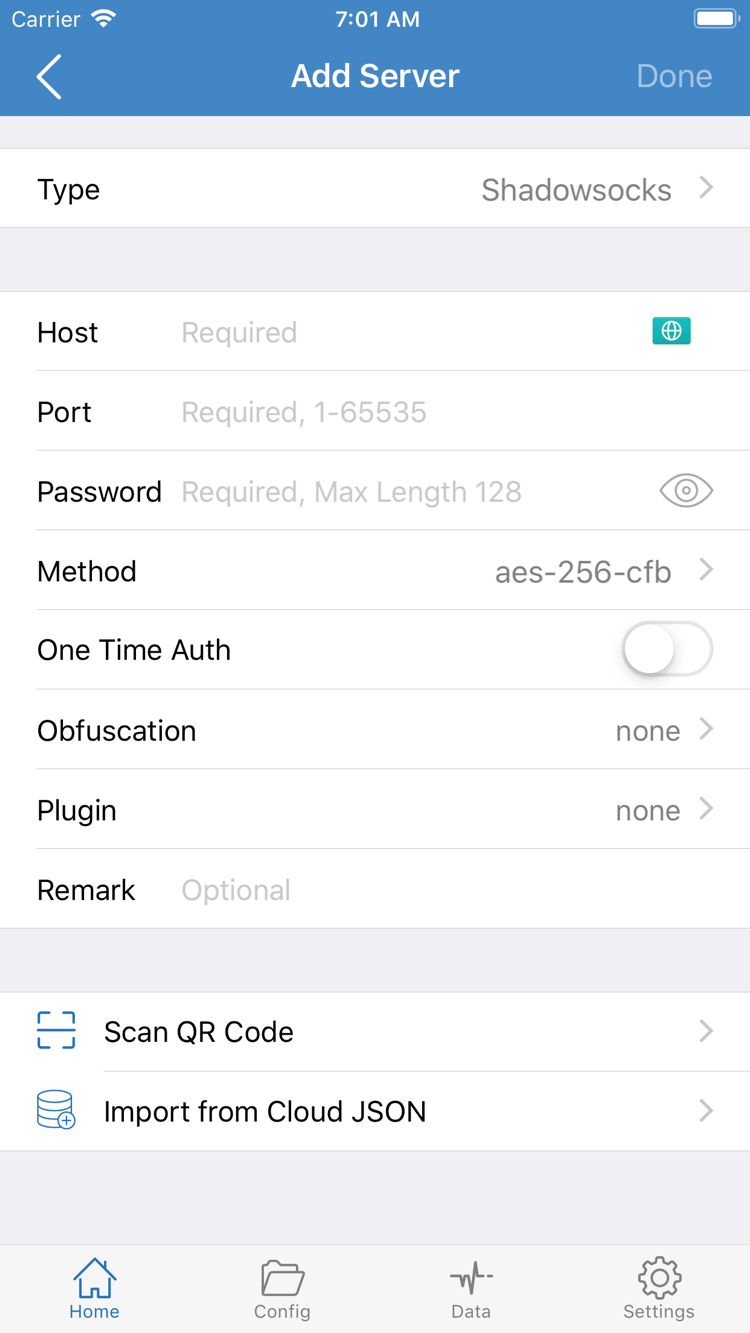
If you have details for a single server, choose the protocol specified by your provider under Type—don’t rely on the default shown in a screenshot. Enter the server’s domain or address in Host and the supplied port in Port. Fields such as Password and Method depend on the selected Type. If your details include TLS, SNI, or other transport settings, check each one against the information you received. Authentication methods vary by protocol; don’t reuse one set of parameters under a different Type.
If you have a server QR code, tap Scan QR Code in Add Server and grant camera access if prompted. Import from Cloud JSON is a separate import option, not a general-purpose field for subscription URLs; use it only when your details are specifically in the supported format. Before saving, check the recognized Host, Port, and Type. A successful scan doesn’t verify the server details.
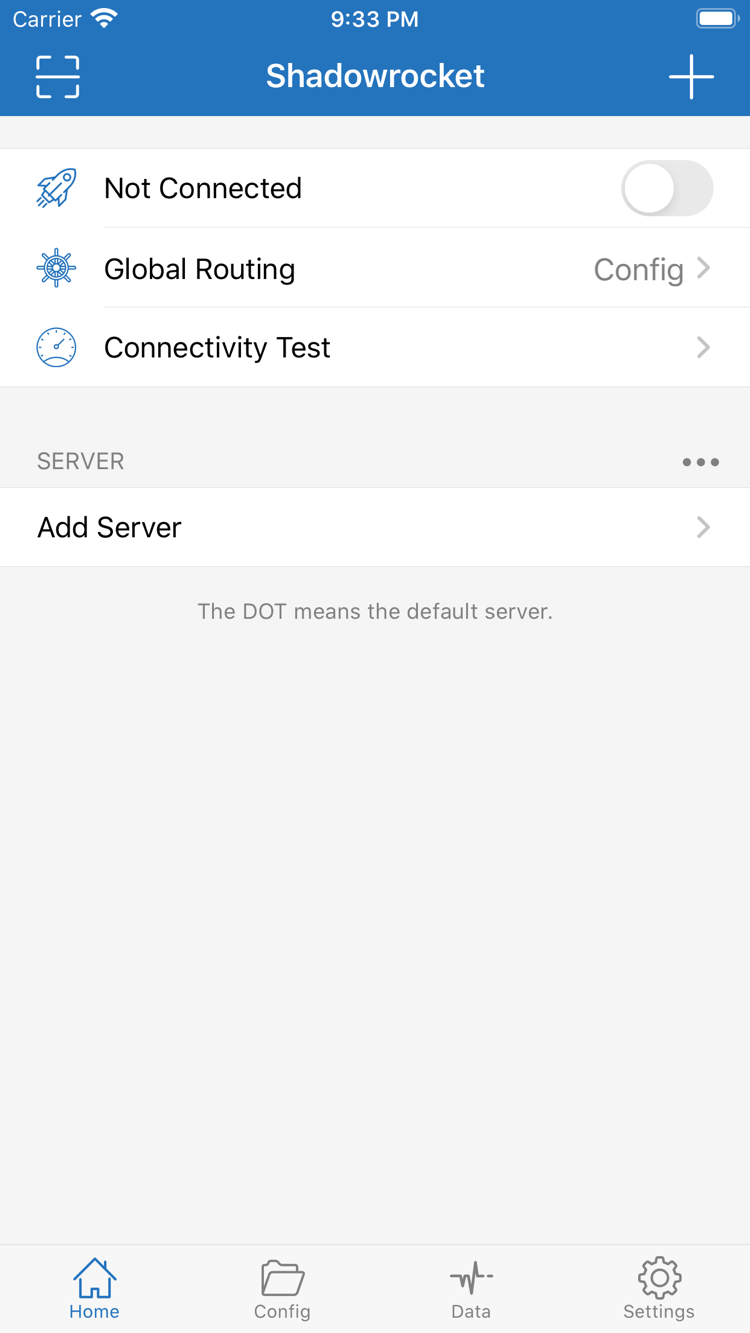
When you’re done, return to Home, tap the server you want to use under SERVER, and confirm it’s selected. You don’t need to turn on the connection yet: seeing an entry in the list only means the details have been saved. Next, choose how requests should be routed. If the list is empty or the format isn’t recognized, see Troubleshooting: Subscriptions and Server Imports.
02 Global Routing
After saving the server details, return to Home and open Global Routing. This setting determines how requests enter the current routing flow; it doesn’t fill in server details for you. Start by learning the three modes: Config, Proxy, and Direct. Choose a mode before connecting, and note the current mode when troubleshooting so you don’t mistake a rule issue for a server problem.
Config: Apply the Rules in the Active Configuration
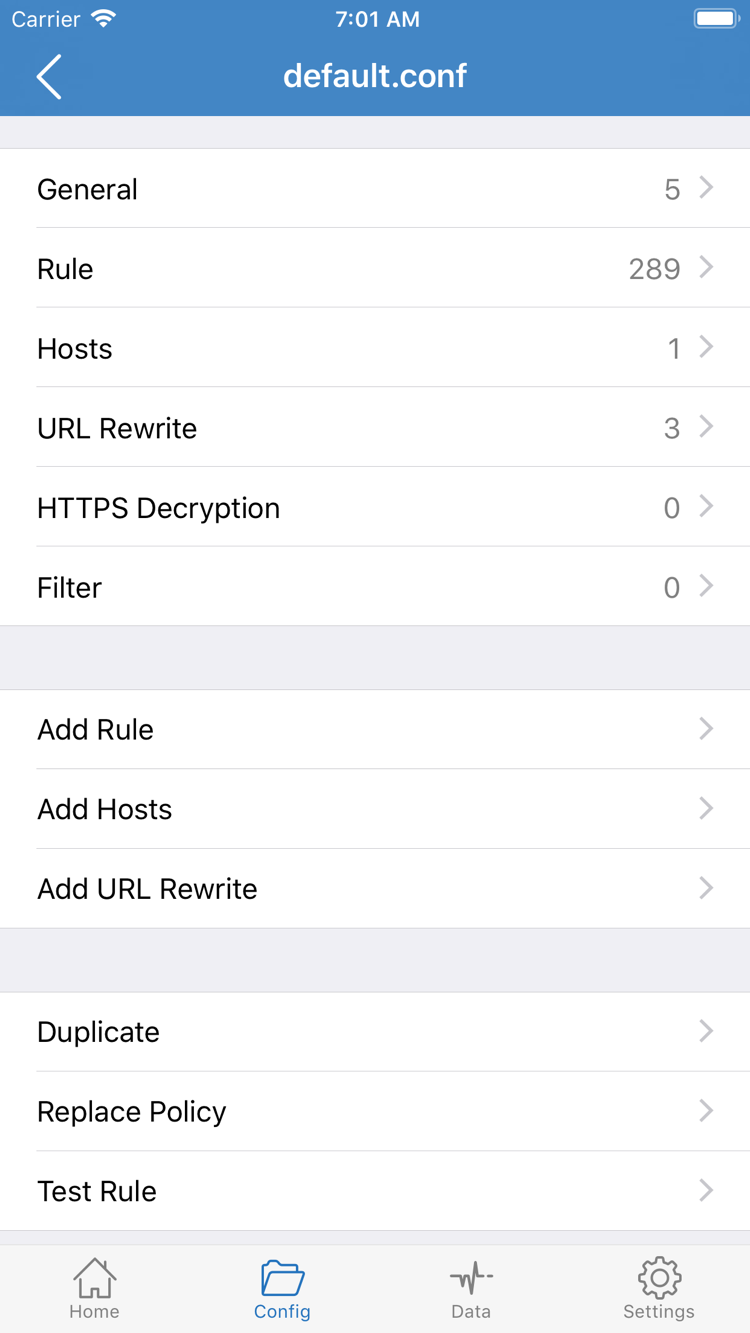
Choose Config for rule-based routing, then open the Config page and confirm which configuration is active. The configuration editor has sections such as General, Rule, Hosts, URL Rewrite, and HTTPS Decryption. For this setup, focus on Rule. Rules determine which policy handles a matching request; DIRECT and proxy policies produce different results. You can tell whether a request is expected to go direct only when you know which configuration is active and where its rules came from.
To review your rules, open Rule in the active configuration and read the existing entries. Don’t add rules at random just to complete your first connection, and don’t change multiple sections at once. URL Rewrite and HTTPS Decryption aren’t required for a basic connection; keep their existing settings until you understand what they do. Importing a Subscribe link adds server entries, while getting a suitable Config is a separate step. More servers do not mean routing rules are configured.
Proxy and Direct: Compare Routing Paths
Proxy routes requests handled by the current routing flow through the proxy path, making it useful for checking the selected server during basic troubleshooting. It still depends on a working server and correct settings; choosing Proxy won’t fix an incorrect password, port, or TLS configuration. Direct uses the local network path and helps check whether the destination is reachable without a proxy. If a request works in Direct, that only confirms this direct request succeeded—it doesn’t prove the proxy path is working.
The snippet below is only an example for recognizing Rule syntax, not a complete configuration to paste. The first line matches a domain suffix; the second is a final handling rule. Read policy names and rule order in the context of your actual configuration.
DOMAIN-SUFFIX,example.com,PROXY
FINAL,DIRECT
For your first setup, keep the Config you’ve already checked. If the result is unclear, temporarily switch to Proxy for comparison, then restore the intended mode. Routing every request through a proxy is not the only correct outcome. For more on rule order, policy references, and DNS, see the Troubleshooting Guide. For now, continue with the connection steps.
03 Connect
Return to Home and check everything before connecting: a server is selected under SERVER, Global Routing shows the mode you chose, and the device has a working network connection. If you’ve just switched networks, wait for Wi-Fi or cellular service to stabilize before continuing. This makes it easier to tell whether an issue is caused by the device’s network or the app’s connection process.
Use the Connection Switch at the Top of Home
Tap the connection switch at the top of Home. The first time you connect, iOS may ask to let Shadowrocket add a VPN configuration. Confirm that you initiated the request, then follow the system prompts to approve it and authenticate on your device. This authorization lets the system create a network connection configuration; it doesn’t buy a service or add a server. Without system approval, the app can’t establish a connection through the normal flow, even if the server details are saved.
After granting permission, return to Home and check whether the status at the top has changed from Not Connected. If the switch is still off, make sure you’ve completed the system prompt before trying again. Don’t tap the switch repeatedly. If it turns off immediately or stays disconnected, note the message and check whether another VPN configuration is connecting or a device management policy is restricting connections. Resolve the switch or authorization issue first; there’s no need to re-enter the subscription.
Connection Status Is Not the Same as Working Access
The connection status at the top and the system’s VPN indicator show the state of the connection process; they don’t guarantee access to every destination. Incorrect server details, an unreachable port, or unexpected routing rules may only become apparent after the switch is on. At this stage, confirm that system authorization is complete, the Home connection status is stable, and the selected server and mode are still the ones you chose. Verify actual requests separately in the next step.
For your first setup, turn the connection on manually; there’s no need to enable On Demand at the same time. On Demand conditions may trigger a connection when the network changes, making it harder to tell why the connection started during a manual test. To end the test, return to Home, turn off the switch, and confirm the status has changed. Force-quitting the app does not confirm that the system connection has stopped.
On iPad, follow the same order: select a server and mode, approve the system prompt, then check the status. The layout or navigation may differ from iPhone, but the Home, SERVER, and Global Routing checks are the same. Once the connection is stable, keep the settings unchanged and continue with Connectivity Test and a real-world access check.
04 Verify the Connection
Check both the test result and a real request; don’t rely on the switch color alone. Keep the server, Global Routing mode, and device network unchanged. On Home, tap Connectivity Test and review the result. Test duration depends on the method, destination, and network conditions. A quick result doesn’t guarantee fast downloads, and one timeout doesn’t prove that all protocol settings are wrong.
Run a Repeatable Access Test
When the test is complete, open an app or website you need to use and make a new request, such as reloading a page. A cached page or an existing long-lived connection may not reflect the latest settings. Note exactly what happens: does the page fail to open, do some images fail, or does the content load slowly? Specific observations make it easier to identify the problem area.
If you’re using Config, choose a destination whose handling policy you can identify in the active Rule, then check any available connection logs in the app to see which policy handled the request. Not every request needs to use a proxy: when a rule specifies DIRECT, a direct connection is expected. If you can’t tell which rule matched, don’t add more rules yet. Keep the same server, temporarily switch to Proxy, and test the same destination again. Restore Config afterward to see whether the issue is limited to the rule-based path.
Use Data Readings as Supporting Evidence
Check the traffic statistics shown in Data to see whether any traffic was generated during the test. Readings may cover different time periods or include requests from background apps, so a changing number doesn’t prove that a specific page followed the expected policy. For a useful comparison, fix the test period, note the starting reading, and perform one clearly defined access test. Don’t treat a cumulative total as the traffic from that single test.
If Connectivity Test succeeds but a destination still fails, check how the request relates to its rules, DNS, TLS, and the destination service before deleting the configuration. If the test fails but real-world access works, check whether the test method is suitable for the current server. You can review Test Method in Settings. Change one item at a time and note its value before and after the change to avoid misreading results from different test conditions.
If the connection is stable and the destination request follows the expected path, you’ve completed the basic setup. You can adjust Rule or On Demand settings later, one at a time, repeating the verification step after each change. If something still isn’t working, keep the results you have and check the relevant failure point below. There’s no need to repeatedly import everything from scratch.
05 Troubleshoot Common Issues
First identify where the process failed, then check only the relevant inputs. Import errors, a switch that won’t turn on, server timeouts, and failures affecting only some websites involve different parts of the setup. For initial troubleshooting, avoid changing the protocol, DNS, rules, and test method all at once; even if the issue goes away, you won’t know which change helped. Follow the steps below to narrow it down. The Troubleshooting Guide covers the details and advanced steps.
Subscription Won’t Import or Update
First, confirm the device has a working network connection, then check that the Subscribe URL is complete. If the error mentions authentication, an expired link, or an unexpected response format, ask your service provider to verify the original subscription details. Don’t use a regular webpage that requires sign-in, an information page, or individual server details as a subscription URL. Keep the error message, but don’t post the full subscription link publicly. For more steps, see Troubleshooting Subscription Errors; there’s no need to change Global Routing first.
Switch Won’t Turn On or Connection Stops Immediately
Review step three and confirm that you approved the system VPN configuration. Check whether another VPN connection is already active. If the device is managed by an organization, network permissions may be controlled by its device policies; follow the applicable management requirements. This happens while the connection is being established and usually can’t be fixed by choosing a different Rule. Keep the exact system prompt and see Troubleshooting for help with installation and first launch.
Server Times Out or Access Fails After Connecting
Open the edit screen for the affected server and check Type, Host, Port, authentication fields, TLS, and transport settings against the details you received. Similar names don’t guarantee matching settings, and weakening security checks isn’t a substitute for correct configuration. Once you’ve verified the details, test the same destination again. If you switch between Wi-Fi and cellular, keep the server and mode unchanged. If the issue occurs only on one network, note the difference and investigate the local network and server reachability.
Only Some Requests Fail or Speed Is Unexpected
Check Global Routing first and compare the result for the same destination in Config and Proxy. If it fails only in Config, check the active configuration, rule order, and policy references. If it fails in both modes, check the server path and destination service. For domain-related issues, see DNS Troubleshooting. Don’t change all DNS settings because one destination fails, or infer long-term speed from a single test reading.
Settings: Keep the Diagnostic Details You Need
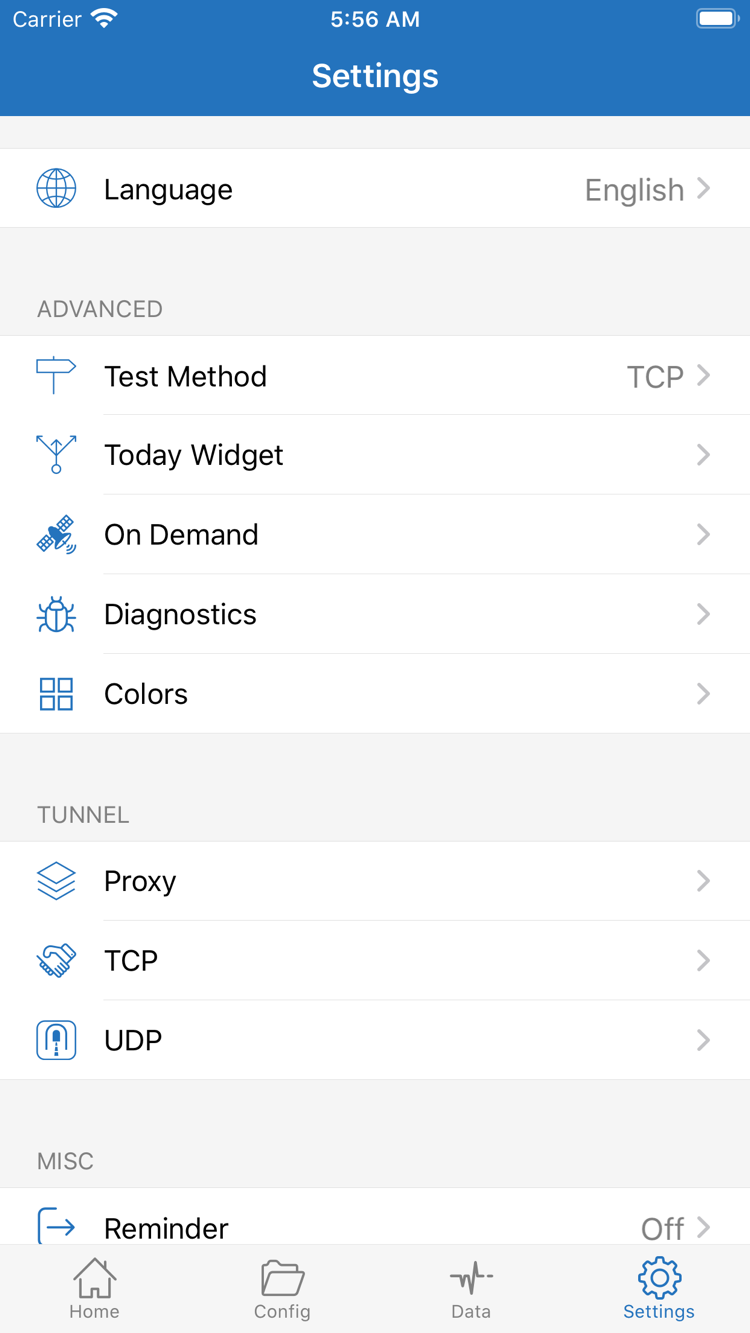
In Settings, start with the items related to the problem you’re troubleshooting. Test Method lets you check how the test is run; Diagnostics provides an entry point for further checks. On Demand controls automatic connection conditions, while Proxy, TCP, and UDP settings should be handled separately once you know their purpose. You don’t need to change all of these for a first connection. The screenshot shows where to find the settings, not a set of values to copy.
If you need to check the issue with your service provider, share the error message, the conditions that trigger it, and the comparison tests you’ve run. Before sharing screenshots or diagnostic logs, remove Password, subscription authentication details, and other personal information. If you still can’t locate the cause, follow the relevant symptom section in the Troubleshooting Guide. After completing the basic setup, see Feature Guide to learn about On Demand and diagnostics, then expand your settings one step at a time.