To identify Shadowrocket, first check the developer’s full name, then compare the official icon, and finally verify the App ID in the App Store product link. This guide is for first-time buyers, people looking for a previously purchased app, and anyone unsure about a search result. Complete these checks before paying or downloading again; search ranking, similar names, and price are no substitute for verifying the app’s identity.
1. The three checks that identify the genuine app
Shadowrocket is developed by Shadow Launch Technology Limited, has App ID 932747118, and is available exclusively through the App Store. The app name can help you search, but it isn’t enough to confirm its identity. Similar names, rocket icons, or matching feature descriptions in search results don’t prove that an app is the same product.
All three details should match on the same product page. Don’t piece them together from search screenshots, forwarded messages, or another app’s listing. If a result matches only one or two checks, keep verifying; if any details don’t match, stop before buying. A similar name doesn’t automatically mean an app is malicious, but it also doesn’t make it the Shadowrocket covered here.
2. Verify the app on iPhone or iPad
Complete these steps before paying. App Store buttons can vary by device language, account status, and purchase history, so focus on matching the app details rather than treating a particular button as proof of identity. If search results are hard to tell apart, open the product page from our genuine app verification page, then repeat the checks below.
-
Open the App Store
Open App Store → Search and enter the full name
Shadowrocket. Open the app’s product page before confirming anything; don’t decide based on the search results alone. -
Check the developer
Check the developer shown on the product page, then verify the provider under Information. The name should be
Shadow Launch Technology Limited. Don’t rely on seeing just “Shadow” or “Technology” in the name. -
Compare the icon
Compare the App Store icon with the official icon shown below. Check for the white background, blue-purple outlined rocket, and matching overall design. A rocket symbol alone isn’t enough to complete the check.
-
Check the link
Use the App Store product page’s share option to copy the link, then inspect the full address. Confirm the domain is
apps.apple.comand the product path containsid932747118. -
Confirm before buying
Once all three checks match, review the price, compatibility, and purchase confirmation. If anything doesn’t match, cancel and return to the genuine app verification page to open the product again.
When checking a copied address, verify the actual domain rather than just looking for the word Apple somewhere in the URL. Product links may include a storefront region or extra parameters, but these don’t replace the App ID. Don’t mistake other numbers at the end of a link for the product ID. If you’re unsure how to read the address, reopen the app from our verification page rather than guessing.
3. How to check the official icon and App ID
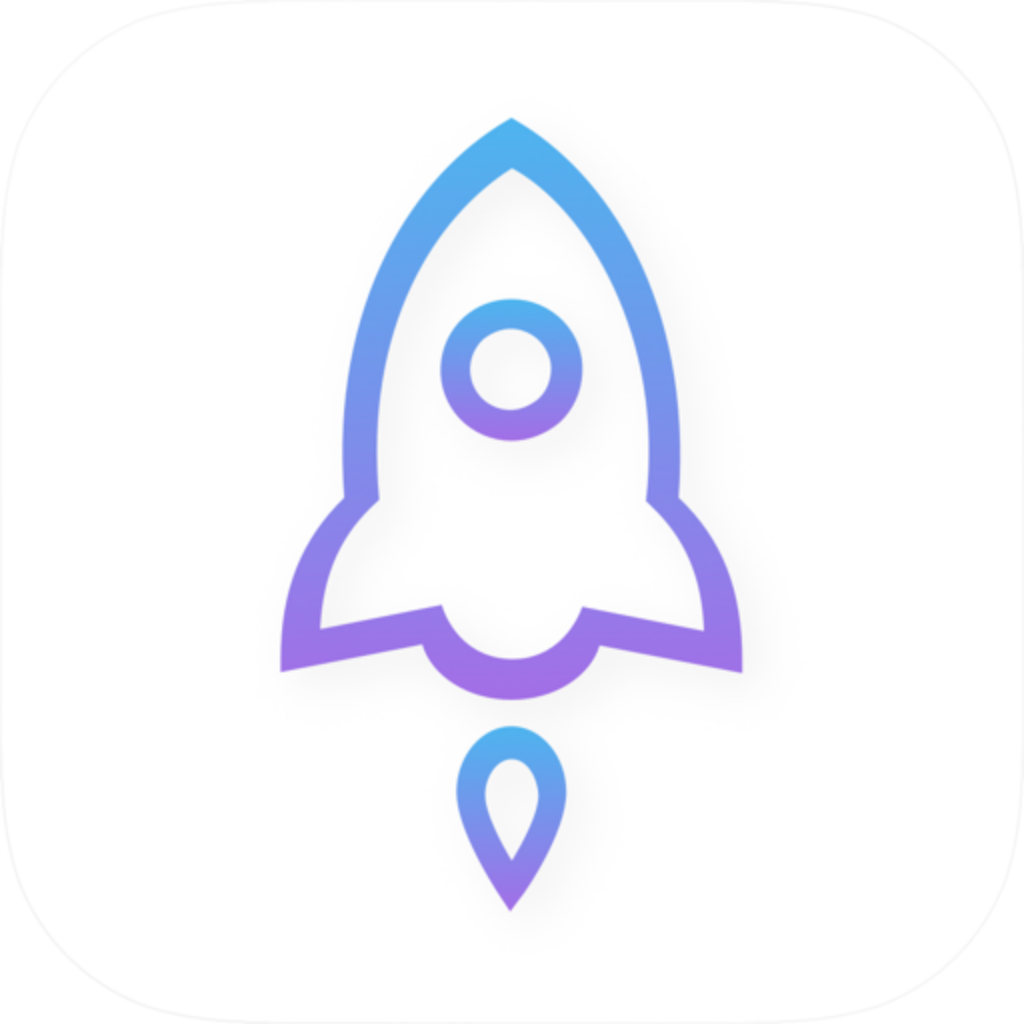
The icon is useful for a quick visual check, but it can’t verify an app on its own. Fine details may be hard to see in a small thumbnail, and an official icon in a promotional image doesn’t guarantee that the purchase link next to it goes to the right product. Verify the actual App Store product page, then check the developer and App ID as well.
| What to check | What you should see | Common mistake |
|---|---|---|
| Developer | Shadow Launch Technology Limited | Recognizing one similar word but overlooking differences in the full name. |
| Official icon | A white background and blue-purple outlined rocket, matching the image above. | Assuming every rocket icon represents the same app. |
| App ID | The product link path contains id932747118. |
Checking the app name in the link but not the numeric ID. |
| Store domain | apps.apple.com |
Proceeding just because the page mentions the App Store. |
Bottom line: stop if anything doesn’t match
If the developer name or App ID doesn’t match, don’t dismiss the difference because the icon “looks close.” Return to the genuine app verification page, reopen the product, and check all three details again. Pay only after they match.
The App ID identifies the product’s App Store listing. It isn’t a version number or a device installation record. You can use the same ID to find an app you previously purchased; there’s no need to infer its identity from the description length, screenshot language, or number of reviews.
4. Check the purchase separately from network services
Shadowrocket is a closed-source commercial app sold as a one-time purchase. Buying the app doesn’t include a network service subscription. This guide assumes you already have your own service provider and subscription; get subscription links from your provider. This site does not provide, sell, or recommend nodes, subscriptions, or service providers.
- Available on: Primarily iPhone and iPad. Check the App Store listing for Mac, Apple TV, and Apple Vision compatibility and system requirements.
- Price: Check the current App Store product page and purchase confirmation. Don’t use prices shown in online screenshots to decide whether an app is genuine.
- Account status: If the page offers a redownload option, first check whether you’re using the Apple Account that originally made the App Store purchase. Don’t infer purchase history from a button’s appearance alone.
- First-time use: Verifying the app and setting up a connection are separate steps. Once you’ve confirmed the product, follow the tutorial to configure a server or subscription in Home. Don’t submit subscription credentials while verifying the app.
Store availability and purchase eligibility don’t confirm an app’s identity. If the specified product page isn’t available in your region, don’t buy a similarly named result instead; a similar name is no substitute for verification. Check your current storefront, and contact Apple’s purchase support for payment or order issues.
5. Common questions about search results, past purchases, and mistaken purchases
Is the first search result always the genuine app?
You can’t tell from its position. Open the product page, check the full developer name, then use the share link to verify id932747118. Search ranking only determines where a result appears; it doesn’t establish the app’s identity.
The icon looks the same. Do I still need to check the developer?
Yes. The icon is a visual check, not a unique identifier for a purchase. Also verify Shadow Launch Technology Limited and the App ID. All three details must come from the same product page; don’t use a separate screenshot to fill in missing information.
I bought it before, but now it shows a price. What should I do?
First verify the current product’s App ID, then check the Apple Account and purchase history used for the App Store. Look for the app in your App Store account’s purchased apps. Confirm that the original order and current product match before trying to restore the purchase. Don’t pay again just to troubleshoot.
I bought the wrong app. What should I do first?
First, check the App Store account’s purchase history to confirm the app name and provider on the order, and keep the order details. Then use Apple’s purchase support or refund request process. Apple decides whether a refund is approved. After that, return to our genuine app verification page and check the intended product again.
Can I tell if it’s genuine from Home or Settings?
Don’t rely on interface sections alone. Home, Config, and Settings can help you understand the app’s workflow, but the interface can’t verify its App Store identity. Return to the App Store product page to check the developer and App ID, then follow the user guide.
6. Final checks before paying
Before the purchase confirmation appears, take one last look at the current product page. Verify the exact app you’re about to buy, not a search result you viewed earlier. If you switched pages or opened a link someone forwarded, check the App ID again so you don’t apply an earlier verification to a different app.
- The full developer name is
Shadow Launch Technology Limited. - The product icon matches the official icon shown here—not merely another rocket-themed design.
- The App Store product link has App ID
932747118. - I’ve checked the current store price and compatibility. System requirements are as listed on the App Store page.
- I understand that buying the app is separate from a service provider subscription. I’ll get configuration details from my provider.
Use the same verification steps when redownloading or finding the app on a new device. First locate the same App Store product, then restore your purchase or set it up for the first time. Search ranking, price changes, and connection status don’t establish an app’s identity.